This can be especially annoying if you rely on the app for scheduling cleanups or checking on the robot remotely. This guide walks through the most common causes of the problem and offers a clear, step-by-step path to fixing it, starting with the simplest checks and moving toward more advanced solutions.
Why Won't Roomba Connect to Wi-Fi?
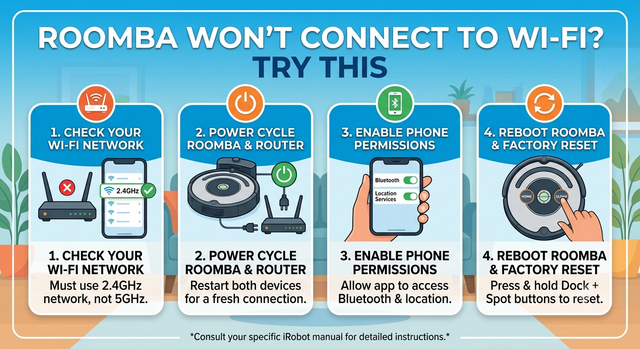
Before jumping into fixes, it helps to understand what's likely going wrong. Most internet-connected Roomba models only work on 2.4GHz networks; they don't support 5GHz. Distance from the router, along with obstacles like thick walls and other electronics, can also weaken the signal significantly. On top of that, network-side settings such as client isolation, firewall restrictions, or outdated firmware on the robot or the app can all block a successful connection.
Understanding these causes makes it much easier to zero in on the right fix instead of trying every step at random.
Step 1:Confirm Your Network Is Broadcasting on 2.4GHz
This is by far the most common reason Roomba fails to connect. Most modern routers broadcast two separate networks, one on 2.4GHz and one on 5GHz, and many use a feature called band steering that combines both under a single network name. This is exactly what confuses Roomba's Wi-Fi module.
To check this:
- Open your router's settings through a browser or your internet provider's app.
- Look for the wireless settings section.
- If both bands share the same network name, temporarily split the 2.4GHz band and give it a distinct name, such as "MyHome_24G."
Step 2:Check Signal Strength and Router Placement
Even on the correct frequency, a weak signal at the charging dock can prevent a connection or make it unstable. To improve signal strength:
- Move the charging dock closer to the router if possible, or at least away from thick walls, metal surfaces, and large mirrors.
- Keep the dock away from devices that cause wireless interference, such as microwaves or older cordless phones.
- In larger homes, consider a Wi-Fi extender or a mesh network system for better coverage.
You can also test signal strength at the dock's location using your phone: stand next to the dock and check how many bars you get specifically on the 2.4GHz network.
Step 3:Restart Every Device Involved
This sounds simple, but it resolves a surprising number of cases. Restart devices in this order:
- Power off the router and modem for at least 30 seconds, then turn them back on and wait for the network to fully stabilize.
- Restart the phone or tablet running the iRobot Home app.
- Restart Roomba itself, either using its power button or through the app's controls.
After restarting everything, wait a few minutes before attempting to reconnect.
Step 4:Reset Roomba's Wi-Fi Settings
If the problem persists, clearing the robot's saved network settings and starting the setup process from scratch often helps. The exact reset method varies slightly by model, but the general steps are:
- On most models, press and hold the Home button and the Spot Clean button together for several seconds until you hear a tone confirming the reset.
- Some newer models require resetting through the app's settings menu instead, using a "Remove Device" option followed by re-adding it.
After the reset, you'll need to go through the full setup process again, as if using the robot for the first time. Check the user manual for your specific model, since older units may handle the reset process differently.
Step 5:Make Sure the iRobot App and Your Phone's OS Are Updated
Sometimes the issue lies with the app rather than the robot or the network. Make sure to:
- Update the iRobot Home app to the latest version available in the app store.
- Update your phone's operating system (iOS or Android) to the latest stable release.
- Grant the app all requested permissions, especially location access, which Android requires to detect nearby Wi-Fi networks.
- Confirm your phone is connected to the same 2.4GHz network during setup.
Step 6:Check Firewall and Client Isolation Settings
Some modern routers, particularly those with advanced security features, include a setting called client isolation or AP isolation. This prevents devices on the same network from communicating with each other, which can block Roomba from linking up with the app even if it successfully joins the network.
To check this:
- Log into your router's settings and look under advanced security options.
- Disable client isolation if it's turned on.
- Also verify there's no MAC address filtering blocking Roomba specifically.
If you're using a guest network, avoid connecting the robot to it, since guest networks are usually isolated from other devices by design.
Step 7:Update the Robot's Firmware
If none of the previous steps work, outdated firmware on the robot itself could be the culprit. Firmware updates usually download automatically once the robot connects to the internet, but if the connection never succeeds in the first place, the update can't happen.
In this case:
- Try connecting to a different network temporarily, such as a phone hotspot, to complete the initial connection and download any pending updates.
- Once the update finishes, you can reconnect the robot to your main home network.
- Check iRobot's official support site to see if there's a known issue affecting your specific model.
Step 8:Check How Many Devices Are Connected to Your Router
Some home routers, especially older ones, cap the number of devices that can connect at the same time. If your home has a lot of smart devices, the router might be refusing new connections.
The fix here is to open the connected devices page in your router's settings, remove or disconnect devices you no longer use, and then try connecting Roomba again.
When to Contact Support
If you've tried every step above and the problem still isn't resolved, there may be a hardware fault in the robot's Wi-Fi module. This is less common but does happen, particularly in older units. At this point, it's worth reaching out to iRobot's official support team and providing the following details to speed up the process:
- The exact model and serial number of your robot.
- The version of the iRobot Home app you're using.
- The type of router and network setup in your home.
- A detailed description of what happens during setup (does an error message appear? Does the first attempt succeed and then drop?).
These details help the support team diagnose the issue accurately and can save you a lot of time spent on trial and error.
Tips to Prevent This from Happening Again
Once the issue is resolved, a few habits can help keep it from recurring:
- Avoid changing your Wi-Fi password frequently without immediately updating it in the app.
- Keep the iRobot app and your router's firmware updated regularly.
- If you upgrade or replace your router, remember to manually reconnect Roomba to the new network.
- Keep the charging dock in a fixed location with good network coverage.
Conclusion
Roomba's failure to connect to Wi-Fi is usually tied to one of a handful of known causes: an unsupported 5GHz network, weak signal strength, client isolation settings, or an outdated app. Working through the steps above in order, starting with the network frequency check and ending with a full device reset, resolves the issue in the vast majority of cases without needing to contact support. If the problem persists after trying everything, reaching out to iRobot's support team with the right details is the most effective final step toward a permanent fix.
Frequently Asked Questions
Still having issues? Here are some quick answers to common Roomba Wi-Fi problems.
Why does my Roomba only support 2.4GHz Wi-Fi?
2.4GHz signals travel further and penetrate walls better than 5GHz signals, making them more reliable for smart home devices that might be far from the router, like a robot vacuum dock in a corner.
How do I know if my router has client isolation enabled?
You can check this by logging into your router's admin panel via a web browser. Look under the "Advanced" or "Security" tabs for settings labeled "AP Isolation", "Client Isolation", or "Guest Network".
Will resetting my Roomba delete its cleaning maps?
A Wi-Fi reset generally does not delete cleaning maps, but a full factory reset might. Always check your specific model's manual before performing a hard reset to avoid losing smart mapping data.